
Add Page Numbers
Stamp consecutive numbers onto a page range. The number at the first page in the range is the starting number you choose.
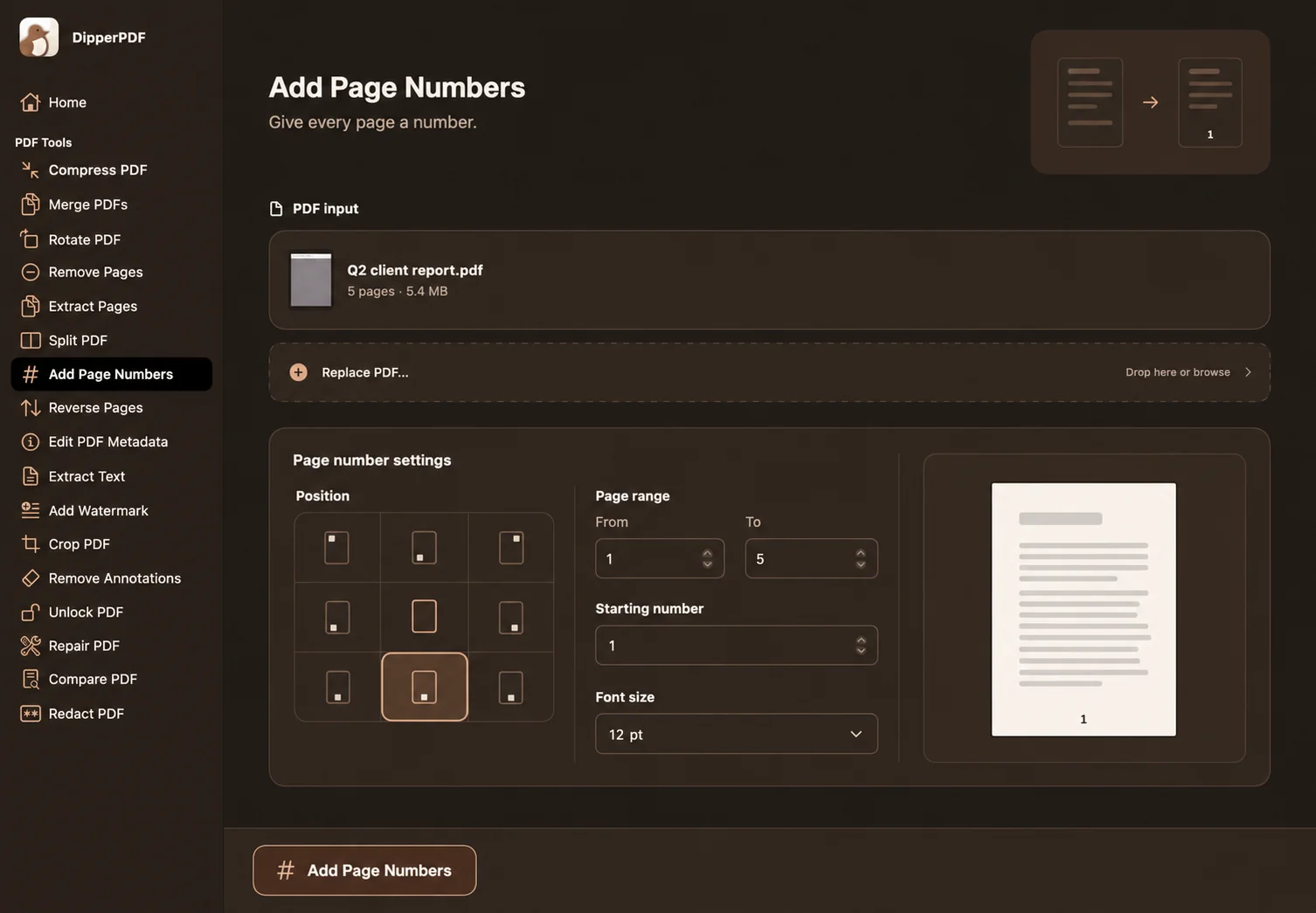
Number and save
- Choose Add Page Numbers and open your PDF.
- Choose Position, then set Page range using From and To.
- Enter a positive Starting number and choose a Font size from 8 to 32 points.
- Click Add Page Numbers and inspect the output preview using its page arrows.
- Click Save PDF… and save a new copy.
For example, setting the range to pages 3–5 and starting number to 1 stamps those pages with 1, 2, and 3. Pages outside the range receive no added numbers.
Placement and limits
Black numbers sit 24 points from the visible bottom edge, at the selected position. They can overlap existing content; check the previews before saving. This adds numbers to the page content rather than changing the document's logical page labels or replacing existing printed numbers.
Use a range within the PDF and a positive starting number to enable Add Page Numbers. The placement diagram is schematic; the output preview shows your prepared pages. Changing settings clears the result, so prepare it again before saving.
For a combined report, merge the PDFs first, then number the saved result.