
Unlock PDF
Remove encryption from a PDF using its current password and permitted document access. The original remains encrypted and unchanged.
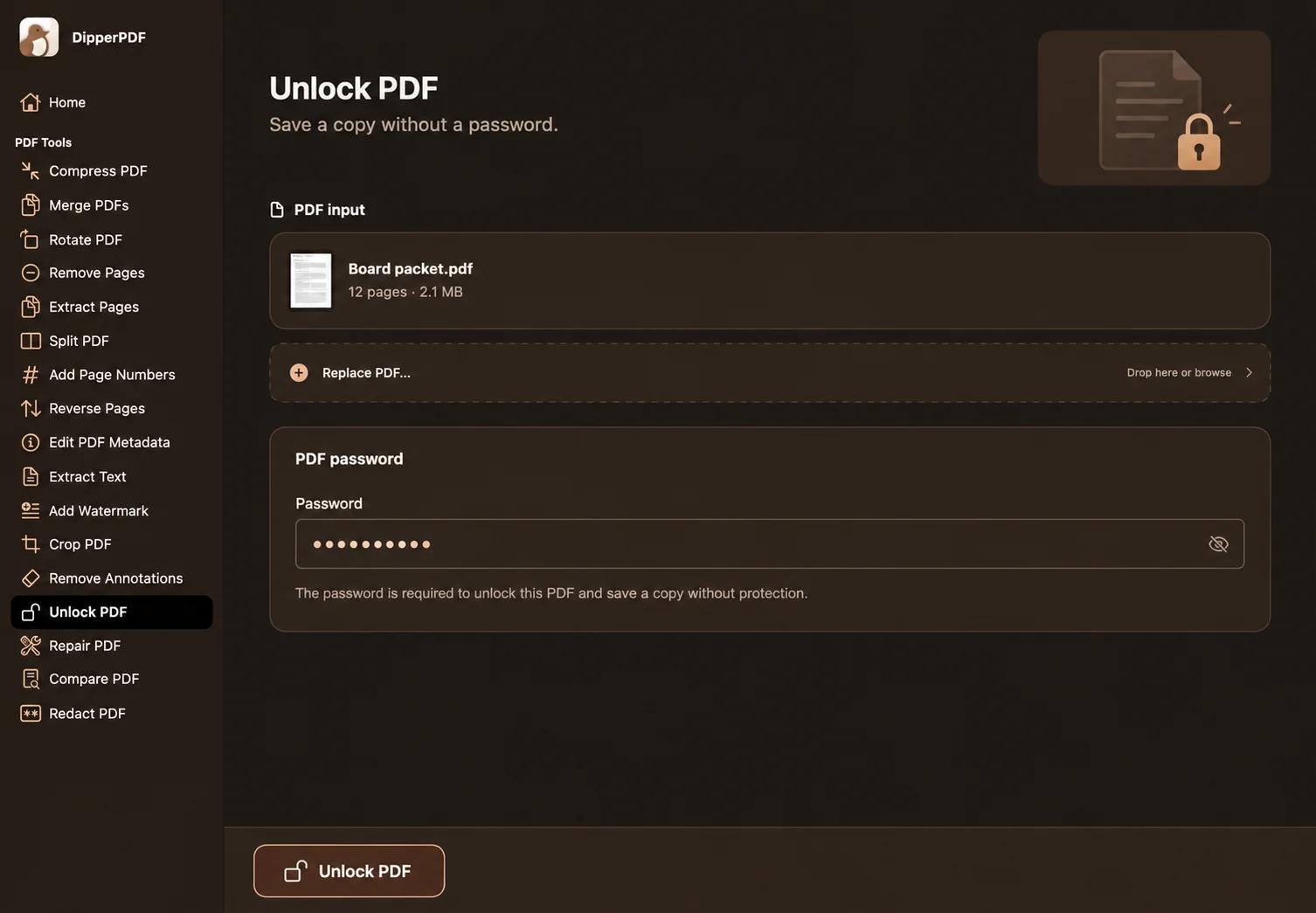
Unlock and save
- Choose Unlock PDF and open the encrypted PDF.
- Enter the current password in Password, under PDF password. If the encrypted PDF opens without a password, leave the field blank.
- Click Unlock PDF and inspect the output preview.
- Click Save PDF… and choose a separate filename and destination.
- Open the saved result to confirm that it no longer asks for a password.
You can import the saved copy into any other DipperPDF tool. The password field clears after successful preparation and when you leave the tool. Cancelling the save dialog keeps the prepared copy available to save without entering the password again.
Passwords and permissions
DipperPDF does not discover or crack passwords. If a password is incorrect, enter the correct one and retry.
PDFs that restrict copying or page assembly require the owner password to permit those operations. A password that lets you view a document may not grant enough permission to export it without encryption. Ask the document owner for the appropriate password.
An unencrypted PDF does not need this tool and is rejected as an input. Other tools reject all encrypted PDFs, including ones that open without a password.
Before sharing
An unlocked copy can be opened without its original password. Save it in a location appropriate for the document's contents. See Privacy & data for the app's local processing behavior.