Crop PDF
Adjust the visible area of a page by trimming its margins. You can crop all pages or a consecutive range.
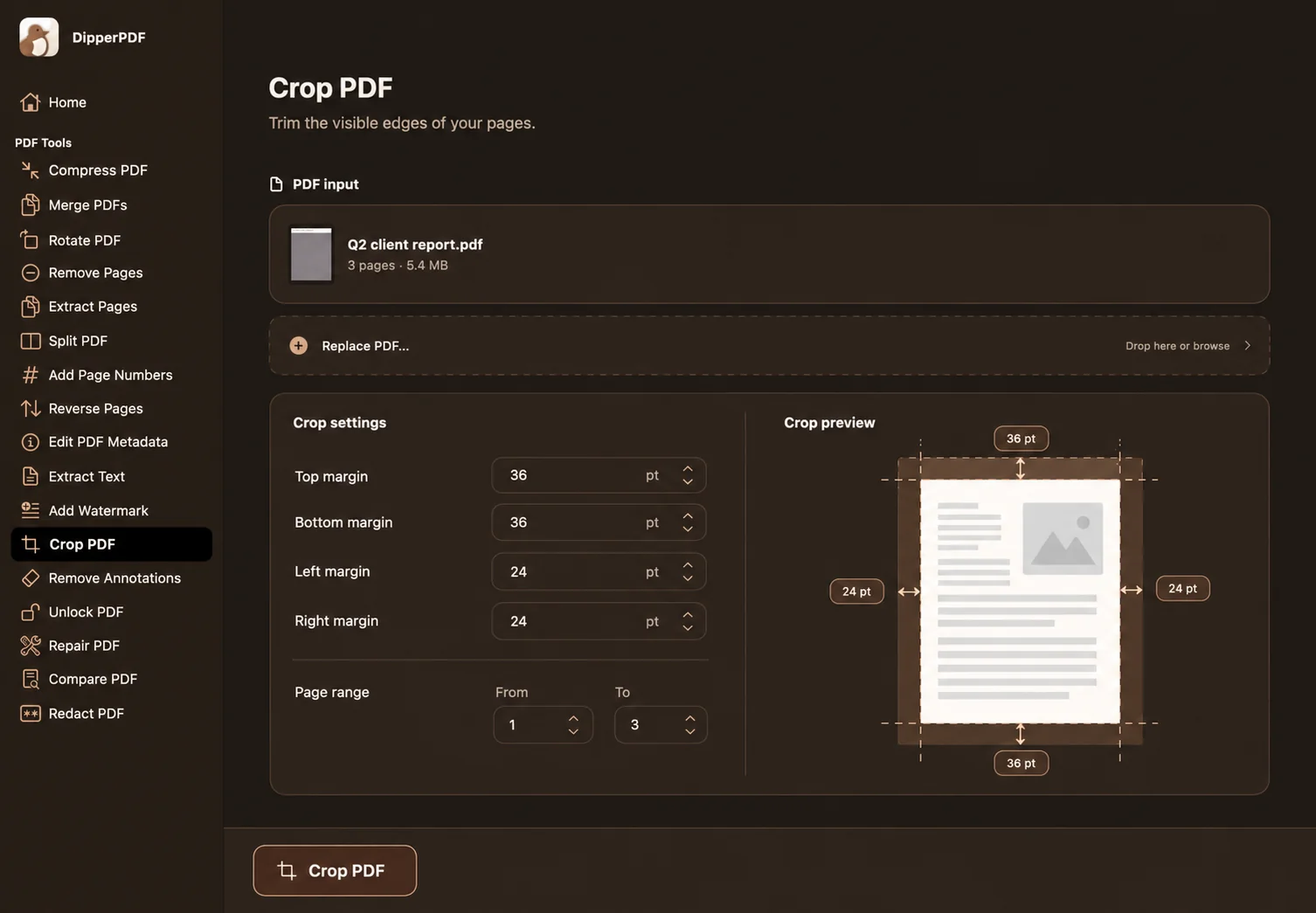
Crop and preview
- Choose Crop PDF and open your PDF.
- Enter Top margin (pt), Bottom margin (pt), Left margin (pt), and Right margin (pt). There are 72 points in an inch.
- Set Page range using From and To. The initial range includes every page.
- Click Crop PDF and inspect the output preview using its page arrows. The settings diagram is schematic.
- Click Save PDF… to save a separate copy.
Margins trim the current visible edges, including on rotated pages. Pages outside your range stay unchanged. For example, 36 points trims half an inch from an edge.
Limits
Use nonnegative margins that leave a visible area on every affected page. If Crop PDF is disabled, check for invalid numeric entries or fix the page range. If preparation reports that the margins leave no visible area, reduce them and try again.
Cropping hides content without deleting it. Hidden text or images may still be recoverable. Do not use cropping to redact sensitive information.
Changing settings clears the prepared result; prepare it again before saving. Remove Pages removes whole pages instead of trimming their edges. Use Redact PDF to find and remove supported selectable text.