
Add Watermark
Add a text watermark such as DRAFT or CONFIDENTIAL to selected consecutive pages, then inspect a preview before saving.
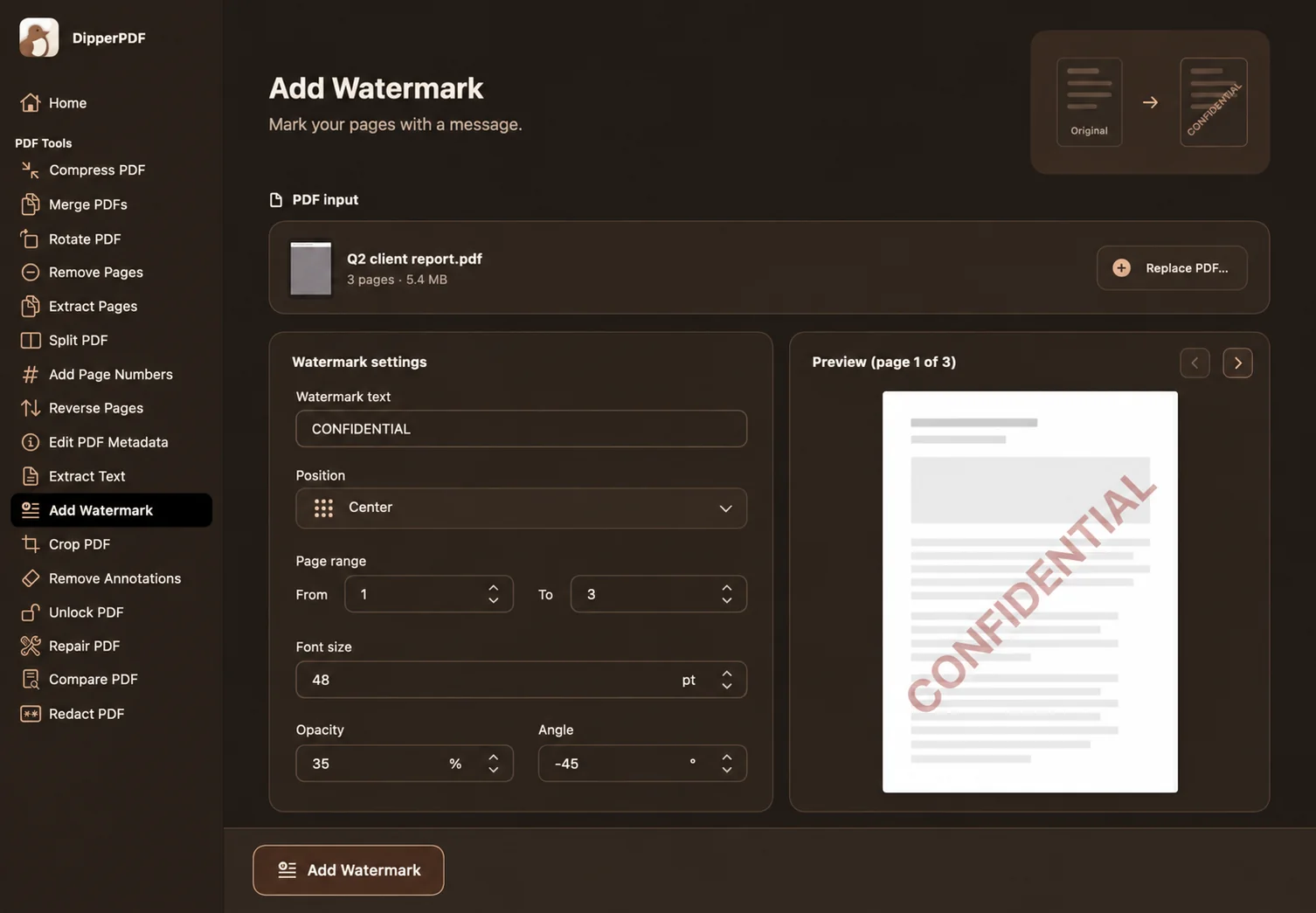
Add your watermark
- Choose Add Watermark and open your PDF.
- Enter up to 200 characters on one line in Watermark text and choose Position.
- Set Page range using From and To.
- Choose a Font size from 12 to 96 points, Opacity from 10% to 100%, and Angle from −90° to 90° in 15° steps.
- Click Add Watermark and use the output preview arrows to check every affected page.
- Click Save PDF… and save a separate copy.
Appearance and limits
The tool overlays black text on the selected pages. Long text shrinks to fit within 24-point margins. Pages outside the range stay unchanged. Use the preview to check overlap with existing text and images.
The watermark is text; image watermarks are not supported. A visible label does not add password protection or prevent copying.
If Add Watermark is disabled, enter nonempty text and check the range and settings. The placement diagram is schematic; inspect the prepared output for actual placement. Changing settings clears the prepared result, so prepare it again before saving.
Use Edit PDF Metadata to change document details instead of adding visible page content.