Rotate PDF
Correct sideways or upside-down pages without changing the page order. Rotating changes the page's orientation metadata.
Rotate and save
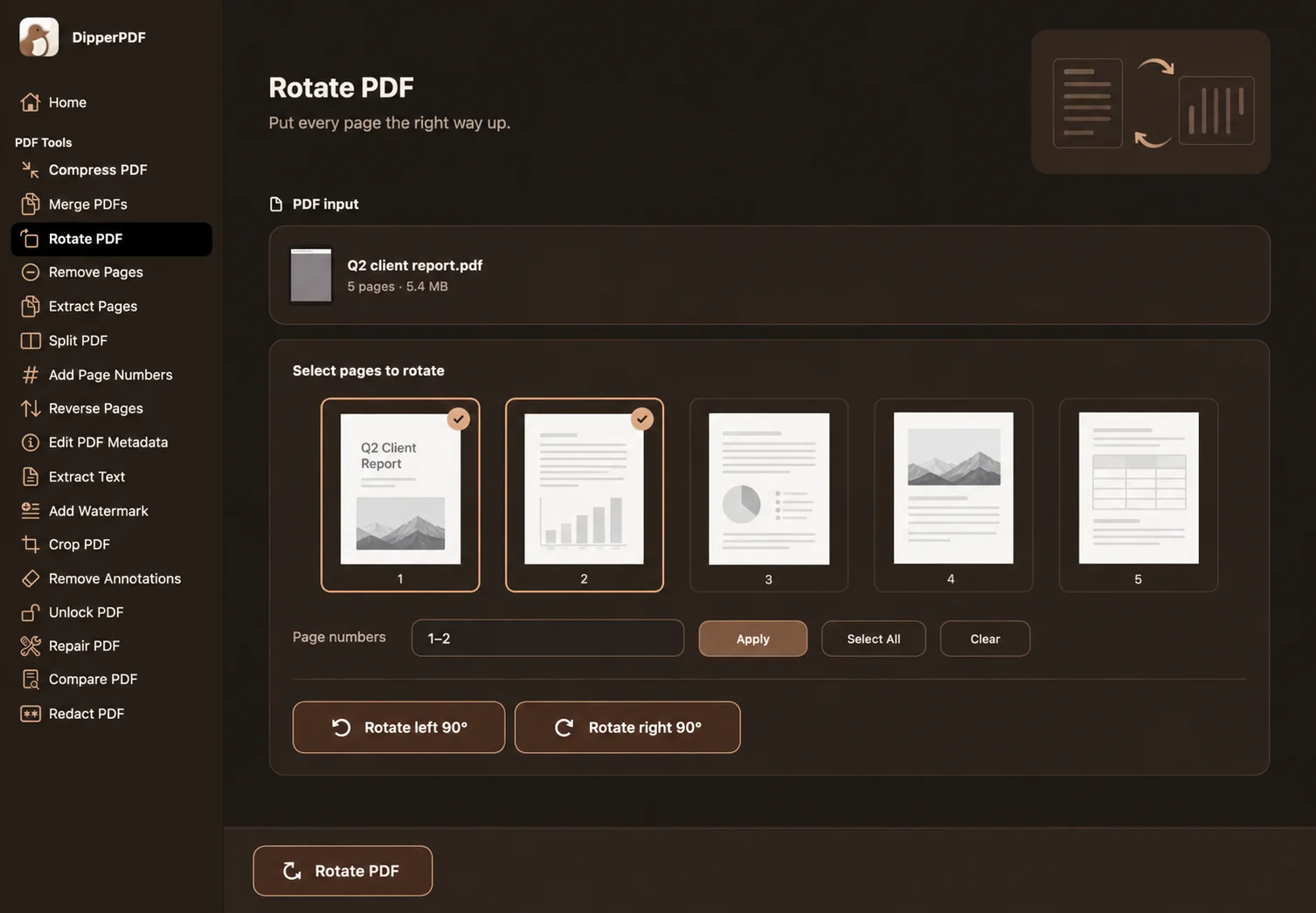
- Choose Rotate PDF and open your PDF.
- Select thumbnails for the pages to turn. Command-click adds or toggles pages; Shift-click selects a range.
- Alternatively, enter a selection such as
1–3, 5in Page numbers, then click Apply or press Return. Invalid entries leave the current selection unchanged. - Click Rotate left 90° or Rotate right 90°. Repeat for a half turn.
- Check the thumbnails, then click Rotate PDF and inspect the output preview.
- Click Save PDF… and save a separate copy.
Use Select All to rotate the whole document or Clear to clear the selection. Preparation is available once a page has a changed rotation; a full 360-degree turn returns it to the original orientation. Changing the selection alone keeps applied rotations and the prepared result; applying another rotation clears the result.
Keyboard shortcuts
- Command+A selects all pages when you are not editing Page numbers. While editing that field, it selects the field's text.
- Command+Shift+L rotates selected pages left.
- Command+Shift+R rotates selected pages right.
- Command+Return prepares the rotated PDF.
- Command+S saves the prepared PDF.
The source file stays unchanged. To change last-to-first order instead of orientation, use Reverse Pages.