
Extract Pages
Save only the pages you choose as one new PDF. The original document keeps all of its pages.
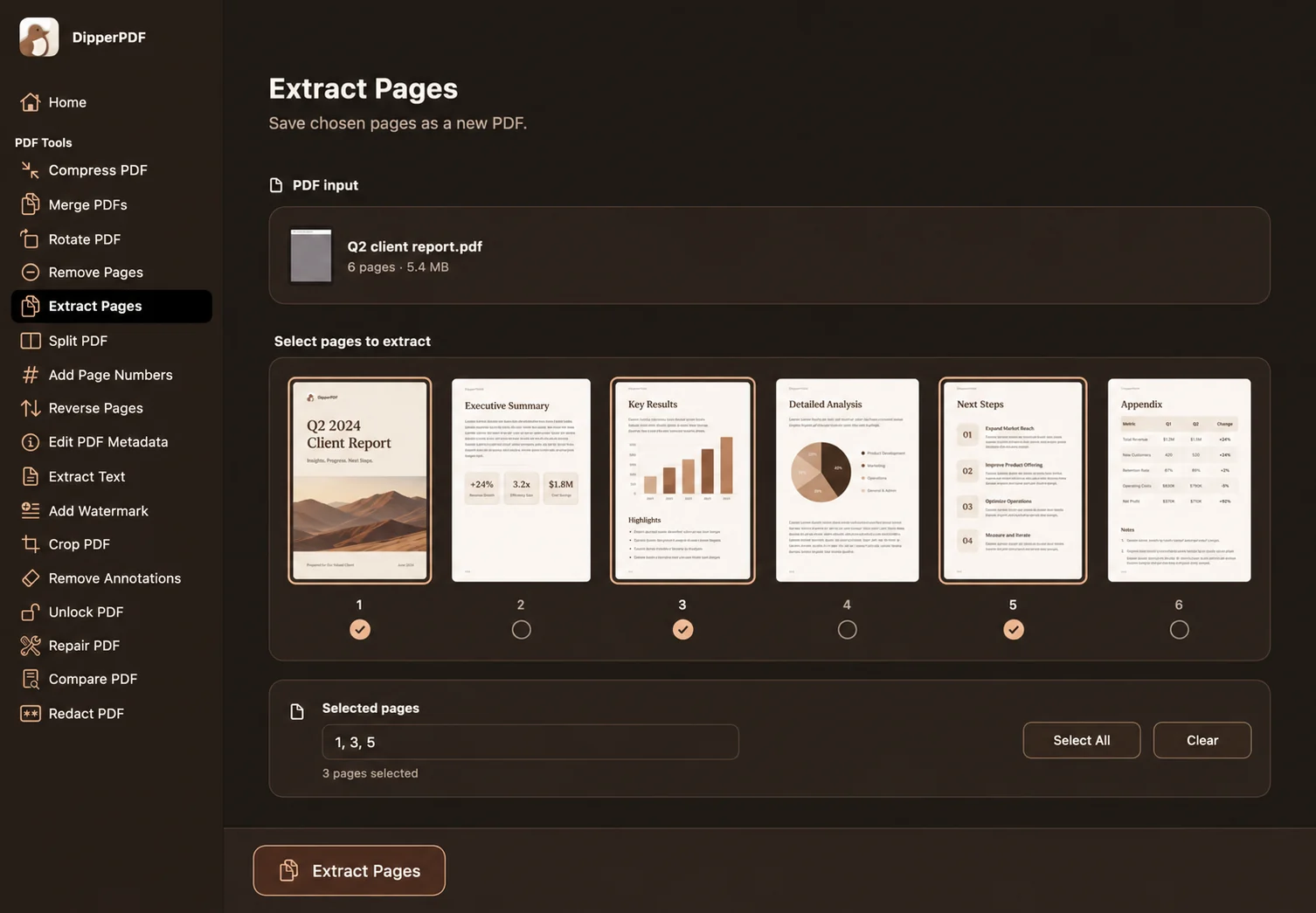
Select and export
- Choose Extract Pages and open your PDF.
- Click a thumbnail to select a page. Command-click adds or toggles pages; Shift-click selects a range.
- Alternatively, enter page numbers such as
1–3, 5in Page numbers, then click Apply or press Return. Invalid entries leave the current selection unchanged. - Check the selected-page count. Use Select All or Clear if needed.
- Click Extract Pages and review the output preview.
- Click Save PDF… and choose a separate filename and location.
Select at least one page to enable Extract Pages. Selecting pages 2, 5, and 6 produces a three-page PDF in that order, regardless of the order you clicked them. Changing the selection clears the prepared result.
Choose the right tool
Extract Pages produces one PDF. Use Split PDF to create multiple consecutive files, or Remove Pages to save everything except your selection.
Review the saved document before sharing it, especially if it contains forms, bookmarks, or signatures.